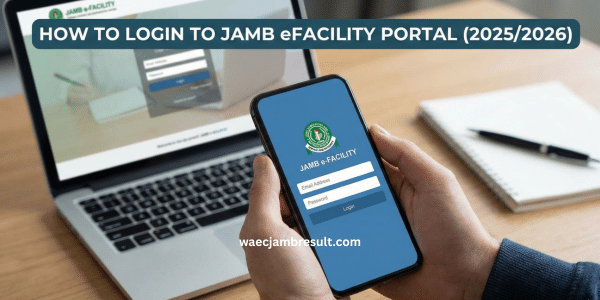
The Joint Admissions and Matriculation Board (JAMB) eFacility portal is the official online platform for candidates to access a wide range of services, from checking UTME results, tracking admission status, to printing admission letters and managing profile information. As of 2025/2026, almost all interactions with JAMB, including result checking and admission offers, go through this portal.
If you have an active JAMB profile (with registered email and password), this guide will walk you through exactly how to login to JAMB eFacility portal (2025/2026), what to do once you’re logged in, and how to avoid common mistakes.
What is the JAMB eFacility Portal — and Why You Need to Use It
The JAMB eFacility portal is the centralized official online service platform for JAMB. Through it, candidates can:
- Check their UTME result online.
- Check admission status under the Central Admission Processing System (CAPS).
- Access and print result slips or admission letters.
- Update personal profile, correct data, or apply for changes (like course/institution changes) without visiting a physical office.
Because JAMB no longer uses older offline or scratch-card result systems for many of these services, the eFacility portal is now the single legitimate gateway for all critical JAMB-related tasks.
This means that knowing how to login to JAMB eFacility portal (2025/2026) is essential if you want to access your result or admission updates.
What You Need Before Logging In
Before you try to log into the eFacility portal, make sure you have:
- The email address you used to register your JAMB profile.
- The password you set during your JAMB registration.
- A stable internet connection — the portal works on smartphone, tablet or laptop.
- A working web browser (Chrome, Firefox, Safari, etc.) — update your browser if it’s old to avoid compatibility issues.
If any of these are missing (especially your login credentials), you may not be able to access your profile — in such cases, you may need to reset your password or recover your account. Many problems stem from using incorrect login details. Also Read: JAMB Matriculation List 2025/2026: Check Your Status &; Secure Admission
How to Login to JAMB eFacility Portal (2025/2026)
Here’s the full login process, broken down into simple steps:
- Open your internet browser (smartphone or computer) and navigate to the official portal URL: https://efacility.jamb.gov.ng or via the main site https://www.jamb.gov.ng then click the “eFacility” or “login” tab.
- On the login page, enter the email address you used during registration and the password you created.
- If a CAPTCHA appears, complete it accurately. This helps prevent automated or fraudulent access.
- Click on the “Login” button. If your credentials are correct and your profile is properly set up, you will be redirected to your JAMB dashboard.
- On your dashboard you should see various options such as “Check UTME Result”, “Check Admission Status”, “Print Slip/Admission Letter”, “CAPS”, etc.
Once logged in, you have full access to all JAMB e-services, allowing you to check your UTME result, monitor admission offers, print documents, or do necessary profile management.
What You Can Do Inside the Portal (After Login)
After successfully logging in to your eFacility account, here are the main services you can access:
Check UTME Result
On your dashboard, click “Check UTME Result” (or similar). Enter required details (often just registration number) to view your result slip. You can print or save the slip as PDF for your records.
Check Admission Status & CAPS
If you applied for admission, you can use the “Check Admission Status” or CAPS section. The portal will show whether you’ve been admitted and give you options to accept or reject admission (if applicable).
Print Admission Letter or Result Slip
Once you have admission or result slip ready, you can print directly from the portal. Some services may require payment (if there are printing fees), but the portal handles it securely.
Profile Update, Data Correction, Course or Institution Change
If you need to correct personal data, change course/institution, or update other registration info — you can often do this through dedicated options in your dashboard (when allowed).
These features make the JAMB eFacility portal an all-in-one solution — no need for physical visits for many tasks.
Common Login Issues & How to Resolve Them
Sometimes you may face problems logging into your portal. Here are common issues and how to fix them:
Invalid Credentials (Wrong Email or Password)
Often login fails because of mistyped email or password. Double-check spelling, ensure correct case (upper/lowercase), and avoid extra spaces. If you forget your password, use the “Forgot Password” option to reset via your registered email.
Browser or Cache Issues
Old browsers or cached data may prevent login. Use an updated browser (Chrome, Firefox, etc.) and clear cache if you experience loading problems. Sometimes switching browsers helps.
Network or Server Overload
On major result release days, high traffic can slow down or block access. If the portal doesn’t load, wait a few hours and retry — especially late at night or early morning.
Trying to Login with Only Registration Number
Some candidates think they can login using just their registration number — but for full access you need JAMB profile credentials (registered email + password). The registration number alone won’t grant full login.
Forgotten or Lost Password / Email Issues
If you lose access to the email you used for registration, regaining access can be tricky. It’s important to keep your registration email active and secure. Use the portal’s “Forgot Password” if needed.
Tips for Smooth and Secure Portal Access
To make sure your login and portal usage go smoothly, consider these best practices:
- Always use the official portal link: efacility.jamb.gov.ng (or via jamb.gov.ng → eFacility). Avoid random or unverified sites they might be phishing or scams.
- Use a strong, memorable password and keep your registered email active and secure. Don’t share login details with anyone.
- Use a stable internet connection to avoid login or loading failures. If results are just released and servers are busy — try again after some time.
- Use a modern, updated browser for best compatibility. Clear cache/data occasionally if the portal misbehaves.
- Once logged in, save or print important documents (result slips, admission letters) immediately rather than relying on repeated portal access.
- Log out after use — especially if using a shared computer or public internet café — to protect your profile and data.
Frequently Asked Questions (FAQ)
Can I login with only my JAMB registration number?
No. To access the full JAMB eFacility portal, you need the email and password you created during registration. Using just a registration number does not grant full access.
What if I forgot my password?
Use the “Forgot Password” link on the eFacility login page. A password-reset link will be sent to your registered email, allowing you to reset and regain access.
Can I use my phone to login or must I use a laptop/PC?
Yes. The portal is mobile-friendly and can be accessed via smartphone, tablet, or PC — as long as you have a browser and stable internet connection.
What if the portal is down or not loading?
This often happens right after result release due to heavy traffic. Try again later (preferably off-peak hours), or clear browser cache and retry. If problems persist, check official JAMB announcements.
Can I check admission status, print result slips, or do corrections after logging in?
Yes — JAMB eFacility portal provides full services: result checking, admission status (CAPS), printing slips/letters, data correction, course/institution change (when permitted), etc.
Conclusion
Logging into the JAMB eFacility portal (2025/2026) is straightforward — but only if you use the correct credentials and the official portal link. Once logged in, the portal gives you full control over your result checking, admission status, printing slips, and other services without needing to visit a physical office.
Take time to store your login credentials safely, avoid sketchy third-party sites, and always use secure internet. By doing that, you will find the portal reliable and efficient, helping you manage your JAMB journey with ease.
Good luck with your UTME results and admission process!